










![[Add - on] Jackery Manual Transfer Switch for Explorer 5000 Plus - Jackery](http://www.jackery.com/cdn/shop/files/add-on-jackery-manual-transfer-switch-for-explorer-5000-plus-9017324.png?v=1754016782&width=350)









![[Add - on] Jackery Manual Transfer Switch for Explorer 5000 Plus - Jackery](http://www.jackery.com/cdn/shop/files/add-on-jackery-manual-transfer-switch-for-explorer-5000-plus-9017324.png?v=1754016782&width=324)


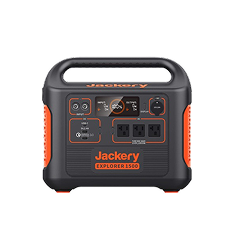
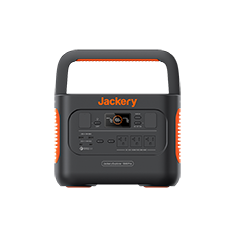
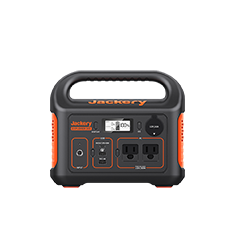
If you want to reset your Jackery Power Station, you need to use the correct button combination based on the product. For example, the classic Jackery Explorer models (like Explorer 240, Explorer 300, Explorer 500, and Explorer 1000) require you to typically press and hold the Display button for about 10 seconds to reboot the power station. On Jackery Pro models (Explorer 1000 Pro, 1500, and 2000 Pro), you press and hold both the Display and USB buttons together for about 13 seconds to reset the product.
If you have purchased the newer Jackery Portable Power Stations, such as from Plus, v2, or HomePower series, you may have different reset methods (for example, an AC Output Reset Button on some models). Hence, you should always check the user manual for that product to know how to reset the Jackery Portable Power Station. Resetting forces the internal Battery Management System (BMS) to restart, which often clears temporary errors without draining the internal battery of the power station.
Takeaways
- Jackery Portable Power Station reset steps vary by series, as Classic Explorer, Pro, Plus, v2, and HomePower each use different reset methods.
- A power station reset clears minor BMS glitches such as frozen displays, unresponsive ports, or inconsistent charging.
- Newer Plus and HomePower models often require multi-button resets or a dedicated AC Output Reset Button. You can always check the user manual to understand the right reset method.
- When should you contact Jackery Support instead of resetting.
- How can you prevent the need for frequent resets in the future.
What Does Resetting a Jackery Mean and When Should You Do It?
Resetting a Jackery Power Station means restarting the internal Battery Management System (BMS) and control circuitry so the product can clear temporary faults, recalibrate sensors, and restore normal operation. The BMS is responsible for monitoring temperature, voltage, charging state, output limits, and battery safety. When the system detects irregular data or gets stuck due to a software hiccup, the power station may stop charging, shut off unexpectedly, show incorrect readings, or refuse to power on.
A reset forces the BMS to reload its operating logic and re-establish proper communication with ports, the display, and internal battery cells. You should reset your Jackery Power Station when you see signs of minor system faults that are not hardware-related. These include situations like the power station turning off even when the battery shows a charge, the display freezing or showing inaccurate numbers, AC/DC/USB ports not responding, solar input not being detected, or the power station failing to start after pressing the POWER button.
How Do You Reset a Jackery Portable Power Station?
Resetting a Jackery Portable Power Station isn’t complicated, but the steps vary depending on the series and the model. You will notice a changed button layout and protection logic across the Classic Explorer, Pro, Plus, v2, and HomePower series, so the safest approach is to follow the method designed for your specific product and given in the user manual. Below, you’ll find the correct reset steps for different series:
Classic Explorer Series (Explorer 240, Explorer 300, Explorer 500, and Explorer 1000)
If you have an older model from Jackery, there are simple soft and hard reset methods. If the display freezes, ports stop responding, or the product won’t wake up, a soft reset usually fixes it. Here is how to reset Jackery 240, 300, 500, or 1000 models:
Step 1: Unplug everything from the power station.
Step 2: Press and hold the Display button for about 10 seconds.
Step 3: Release the Display button when the screen turns off and restarts.
If you want to know how to hard reset your Jackery 300 or other small Explorer models, fully discharge the battery and then recharge it to 100%.
Jackery Pro Series (Explorer 1000 Pro, 1500 Pro, and 2000 Pro)
The Jackery Pro models use a different button combination because of their upgraded internal system. If your USB ports aren’t responding, the AC output won’t turn on, or solar input suddenly stops detecting, this soft reset helps. Here is how to reset Jackery 2000 Pro, 1500, or 1000 Pro models:
Step 1: Disconnect all input and output cables.
Step 2: Press and hold the Display and USB buttons together.
Step 3: Continue holding both buttons for about 13 seconds, until the screen flashes or the system reboots.
For a hard reset, you can drain the battery completely and then charge it fully.
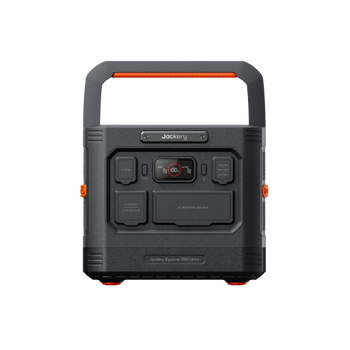
Jackery Plus Series (Explorer 300 Plus, 1000 Plus, 2000 Plus, and 5000 Plus)
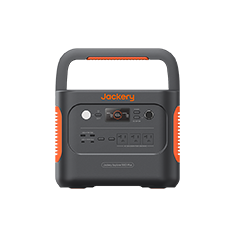
For the Jackery Plus series, you can perform the reset by pressing and holding the “POWER button” and “DC/USB button” for three seconds. This will help you restart the operating system to fix any minor glitches. You can also refer to the user manuals to understand how to reset the Jackery 300 Plus, how to reset the Jackery 2000 Plus, or any other Plus model.

Jackery v2 Series (Explorer 600 v2, 1000 v2, 1500 v2, and 2000 v2)
The Jackery v2 models behave similarly to the Plus models when it comes to resetting. If you are wondering how to reset Jackery 1000 v2 or other v2 models, all you need to do is press and hold the “POWER button” and “DC/USB button” together for about three seconds to reset the device.
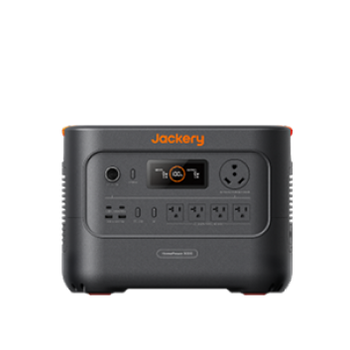
Jackery HomePower Series (HomePower 3000 and HomePower 3600 Plus).
For the HomePower series, use the AC Output Reset Button if the output stops after an overload.
Step 1: Turn off the AC output and disconnect all loads from the power station.
Step 2: Look at the AC output area. If a small reset button has popped up, that means protection has tripped.
Step 3: Press the reset button firmly until it clicks back into place.
Step 4: Turn the power station back on to verify normal operation.
To reset WiFi, Bluetooth, or AC Output, simply press and hold the POWER and USB buttons, or use the AC Output Reset Button on the Jackery Explorer 5000 Plus.

Note: RESET is only recommended when the power station is having any issues. You should not reset the product frequently, especially if there are no issues.
When Should You Contact Jackery Support Instead of Resetting?
A reset can fix small glitches, but it won’t solve deeper issues involving the battery, charging system, or internal electronics. If your Jackery Portable Power Station continues to malfunction even after following the model-specific reset steps, it’s time to stop troubleshooting on your own and reach out to Jackery Support. Here are the situations where resetting is not enough and you should contact Jackery directly:
Battery Error Codes or Warning Icons
If your power station shows battery warnings that keep reappearing, or error icons related to temperature, cell imbalance, or voltage, the BMS may be dealing with a real internal fault. These warnings are meant to prevent damage, so don’t ignore them once they appear repeatedly.
Damaged or Non-Responsive Ports
If the AC, USB, or DC ports stop working entirely (not just temporarily), or only work intermittently, that typically indicates a hardware problem rather than a reset issue. Physical port damage or internal board faults won’t be fixed with a software reset.
Continuous Shutdowns or Thermal Cut-Offs
If your Jackery Portable Power Station shuts down under normal load, turns off while charging, or overheats even when nothing heavy is connected, these points indicate a deeper protection trigger. A reset might temporarily clear the error, but repeated shutdowns require professional inspection.
Charging Issues That Persist After Reset
If the AC charger, car charger, or solar panels still won’t charge the power station after you’ve reset it, the problem could be with the internal charging circuitry. This is especially important for Pro, Plus, v2, and HomePower models, where the system uses complex voltage management.
Unusual Sounds, Smell, or Physical Swelling
If you notice fan noise that wasn’t there before, clicking sounds, an electrical smell, or visible swelling, stop using the power station immediately. These are rare but serious signs that require urgent support.
How Can You Prevent the Need for Frequent Resets in the Future?
Jackery Portable Power Station shouldn’t need regular resets. If you find yourself restarting it often, something in the way the power station is being used is triggering the BMS protections more frequently than it should. The good news is that small habits can keep your power station stable, accurate, and responsive for years without extra troubleshooting. Here are the most effective ways to avoid repeated resets:
Avoid Overloading
Every Jackery Portable Power Station has a fixed output limit. When you plug in appliances that draw more power than the battery can safely deliver, the BMS shuts the system down to protect the battery and inverter. This can make it look like the power station “froze” or “stopped working,” even though it’s simply protecting itself. Check the wattage of your appliances and keep your total load comfortably below the maximum AC output rating.
Keep Firmware Updated (for App-Enabled Models)
Some Jackery models receive occasional firmware updates through the Jackery App. These updates fix bugs, improve charging behavior, and stabilize the BMS. If you skip updates, your power station may develop small issues that accumulate over time, such as inaccurate battery readings or unresponsive ports. Keeping the firmware current reduces these glitches before they start.
Charge Every 3 - 6 Months
LiFePO4 batteries need periodic charging even when you’re not using them. Leaving them at a very low state of charge for too long can stress the battery and confuse the BMS, leading to errors or inaccurate battery percentages. A full recharge every 3 - 6 months keeps the battery healthy and allows the BMS to recalibrate naturally.
Use Genuine Jackery Cables and Accessories
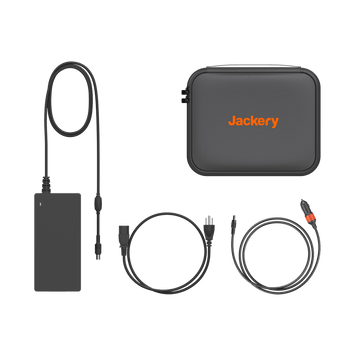
Charging and input issues often come from non-original cables or third-party adapters that don’t match Jackery’s voltage requirements. An incompatible cable may cause inconsistent charging, port failures, or repeated protection triggers. Sticking with Jackery accessories ensures the charging system receives stable, clean input and reduces the likelihood of errors that lead to resets.
Conclusion
Understanding how to reset a Jackery Portable Power Station is an effective way to clear small system issues across the Classic Explorer, Pro, Plus, v2, and HomePower models. Most of the time, a quick reboot is all you need to fix frozen displays, ports that stop responding, or charging inconsistencies. Following the right reset steps ensures you don’t waste time troubleshooting the wrong way or worrying about issues that a simple reset can resolve. If you see any issue or sign indicating that the power station needs more than a restart, contacting Jackery Support is the safest next step.